
Gargoyle router firmware gives you serious power over your network — but the real control lives in the command line. This guide walks you through exactly how to SSH into a Gargoyle router, whether you are on Windows, Mac, or Linux.
If you've ever wanted to go deeper than the Gargoyle web interface allows, SSH is your answer. It gives you direct access to the router's Linux shell, letting you install packages, tweak configs, read logs, and do things no dropdown menu could ever offer. Think of it as the "behind the scenes" pass most users never bother getting.
The good news? Gargoyle runs an SSH server by default, so you don't need to enable anything exotic before you start. You just need to know the right steps — and that's exactly what this guide covers.
What Is SSH and Why Use It on Gargoyle?
SSH stands for Secure Shell. It's a cryptographic network protocol that lets you log into and run commands on a remote device — securely, over an ordinary network connection. The traffic is encrypted end-to-end, so your password and commands don't travel across your network in plain text.
On a Gargoyle router, SSH access is particularly useful because Gargoyle is built on OpenWrt — a full Linux distribution. That means once you're logged in via SSH, you have access to a genuine Linux shell with tools like opkg (the package manager), iptables, and the entire /etc/config directory where all your settings live.
According to the LWN.net review of Gargoyle, the firmware's OpenWrt foundation means that the vast majority of OpenWrt tutorials and commands apply directly to Gargoyle. SSH is the primary way to access these advanced capabilities.
The Gargoyle web interface is clean and friendly. But it doesn't expose every setting. If the UI doesn't have what you need, you log in via SSH and do it yourself. Simple as that.
What You Need Before You Start
Before you attempt to SSH into your Gargoyle router, make sure you have these in order:
A Gargoyle-flashed router — powered on and connected to your LAN
Your router's IP address — typically 192.168.1.1 by default
Your router's root password — the one you set during initial Gargoyle setup
An SSH client — PuTTY on Windows, or your OS terminal on Mac/Linux
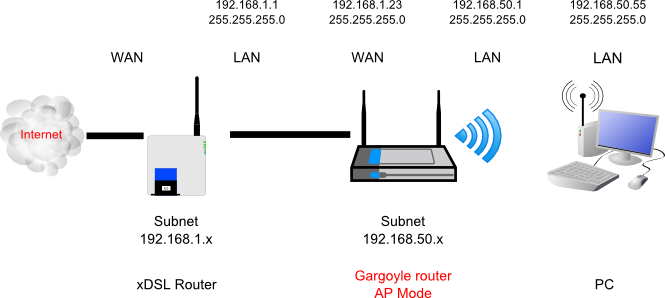
A machine on the LAN side — SSH from the WAN side is blocked by default
SSH port 22 open — this is the default; don't change it unless you know why
Important: You must connect from a device on the LAN side of your Gargoyle router. SSH access from the WAN (internet-facing) side is blocked by default for security reasons. If you're trying to SSH in from an external network, you'll need to configure port forwarding first — which we cover later in this guide.
Method 1: SSH into Gargoyle on Windows Using PuTTY
PuTTY is the most popular SSH client for Windows. It's free, lightweight, and has been the go-to choice for Windows users connecting to network devices for decades. According to the official Gargoyle CLI guide, PuTTY is the recommended tool for Windows users connecting to Gargoyle routers.

-
Download PuTTY from the official site at chiark.greenend.org.uk. Install and open it.
-
In the Host Name (or IP address) field, type your router's IP address — usually
192.168.1.1. -
Make sure the Connection type is set to SSH and the port is 22.
-
Click Open. A security alert may appear the first time — this is normal. Click Accept to store the host key.
-
At the login prompt, type
rootand press Enter. Then enter your router password. Note: the cursor won't move as you type the password — that's normal behaviour for SSH clients. -
You should now see the Gargoyle/OpenWrt shell prompt. You're in.
      # After connecting, you'll see something like this:

      login as: root

      root@192.168.1.1's password: [type your password here]


      BusyBox v1.x.x (Gargoyle firmware)

      root@Gargoyle:~#
Method 2: SSH into Gargoyle on Mac or Linux
Mac and Linux users have it even simpler. Both operating systems come with a built-in SSH client in the terminal. No extra software needed.

-
Open Terminal on Mac (Applications → Utilities → Terminal) or your preferred terminal emulator on Linux.
-
Type the SSH command using the format below and press Enter:
      # Standard SSH connection to Gargoyle

      ssh root@192.168.1.1


      # If your router uses a custom IP address

      ssh root@YOUR_ROUTER_IP


      # If your router uses a non-default SSH port

      ssh -p PORT_NUMBER root@192.168.1.1
-
On first connection, you'll see a message about the authenticity of the host and a fingerprint. Type
yesand press Enter to continue. -
Enter your router password when prompted. You're now logged in to the Gargoyle command line.
Tip: Save your SSH session details using an alias. Add alias gargoyle='ssh root@192.168.1.1' to your ~/.bashrc or ~/.zshrc file. Next time, just type gargoyle in your terminal.
Setting Up SSH Key-Based Authentication
Typing a password every time you log in gets old fast. Key-based authentication is more secure and more convenient — two things that rarely go together in tech, so enjoy it.
Instead of a password, your SSH client presents a cryptographic key. The router checks it matches the public key stored on the device. If it does, you're in — no password needed.
Step 1: Generate an SSH Key Pair (on your local machine)
      ssh-keygen -t rsa -b 4096


      # Accept the default file location (~/.ssh/id_rsa)

      # Set a passphrase (recommended) or leave blank
Step 2: Copy the Public Key to Your Gargoyle Router
      # View your public key first

      cat ~/.ssh/id_rsa.pub


      # SSH into the router and paste the key

      ssh root@192.168.1.1

      mkdir -p ~/.ssh

      echo "YOUR_PUBLIC_KEY" >> ~/.ssh/authorized_keys

      chmod 600 ~/.ssh/authorized_keys
After this, you can SSH into your Gargoyle router without entering a password. For the security-conscious: you've also removed the risk of brute-force password attacks against port 22.
Useful Commands Once You're Inside Gargoyle via SSH
Now that you're in, here's what you can actually do. These are some of the most common actions Gargoyle users take through the SSH command line:
| Command | What It Does |
|---|---|
cat /etc/config/network |
View the full network configuration file |
logread |
Read the system log — great for troubleshooting |
opkg update |
Update the package list from OpenWrt repositories |
opkg install nano |
Install a package (e.g. the Nano text editor) |
ifconfig |
Show network interface details and IP assignments |
reboot |
Restart the router from the command line |
df -h |
Check available storage space on the router |
According to the Gargoyle CLI documentation, the key directories to know on your router are /etc/config (all config files), /tmp (temporary files), and /www (the web interface files). Handle them with care — a wrong edit here won't kill anyone, but it might kill your router's ability to boot.
Common SSH Issues and How to Fix Them
SSH to a Gargoyle router is usually smooth. But if something goes wrong, here's what to check:
"Connection refused" on port 22
This usually means you're connecting from the WAN side of the router, which blocks SSH by default. Make sure your machine is on the LAN network. If you're already on LAN and still getting this, check whether you accidentally changed the default SSH port in the Gargoyle settings. Also try a quick router restart.
"Password authentication failed"
Double-check the password you set during Gargoyle's first-boot setup. This is the same password used for the web interface. Gargoyle uses a single root password for both. If you forgot it, a factory reset is your only realistic option.
SSH works on LAN but not remotely
External SSH requires you to set up a port forwarding rule in the Gargoyle interface to forward TCP port 22 (or a custom port) to the router itself. Note that exposing port 22 to the internet carries real security risks — use a non-standard port and consider key-based auth only. The Gargoyle community strongly recommends using OpenVPN instead for remote access.
Host key mismatch warning
If you reset or reflashed your router, the SSH host key changes. Your client sees a mismatch and warns you of a potential "man in the middle" attack. On Mac/Linux, remove the old key with:
ssh-keygen -R 192.168.1.1
Then reconnect and accept the new key. On PuTTY, just click Accept when prompted.
Security note: Never expose your SSH port directly to the open internet without using key-based authentication and a non-default port. Automated bots scan for open port 22 constantly. Changing the port alone won't stop determined attackers — key-based auth will.
Transferring Files to Your Gargoyle Router via SCP
SSH isn't just for running commands. You can also transfer files to and from your Gargoyle router using SCP (Secure Copy Protocol) or tools like WinSCP on Windows.
The official Gargoyle Wiki specifically recommends WinSCP for Windows users who want a graphical file manager interface for editing and moving files on the router.
      # Copy a file FROM your router to your local machine

      scp root@192.168.1.1:/etc/config/network ./network-backup.txt


      # Copy a file TO your router from your local machine

      scp ./myfile.conf root@192.168.1.1:/tmp/myfile.conf
This is particularly useful for backing up config files before making big changes. Back up first. Always.
Frequently Asked Questions
Yes. According to the LWN.net Gargoyle review, Gargoyle runs an SSH server by default. You can access it immediately after setup using the root password you configure during the initial web interface setup.
The username is always root. Gargoyle (and OpenWrt) use a single root account for both the web interface and SSH access.
Yes. Apps like Termius, JuiceSSH (Android), or Prompt (iOS) all support SSH connections. Just use the same credentials — root@192.168.1.1 — and your router password.
SSH is inherently encrypted and secure. The risk comes from weak passwords or exposing port 22 to the internet. On your LAN, with a strong password (or better yet, key-based auth), SSH on Gargoyle is very secure.
If you accidentally break your config, Gargoyle has a failsafe recovery mode. As of Gargoyle 1.10.0, failsafe mode is accessed via SSH (not Telnet). You can use it to restore the router to a working state without a full reflash.
Wrapping Up
SSH access to your Gargoyle router is genuinely one of the most useful things you can set up if you want real control over your network. The web interface is great — but the command line is where the real work happens.
Whether you're using PuTTY on Windows or a terminal on Mac or Linux, the process is the same: connect to port 22, log in as root, and you're in. From there, the entire OpenWrt ecosystem is at your fingertips — packages, configs, logs, and all.
Take sensible precautions: use a strong password, consider setting up key-based authentication, and don't expose SSH to the internet without proper safeguards. Do those things, and you've got a powerful, flexible router setup that most people simply never unlock.
Sources & References
- Gargoyle Wiki — SSH Access Documentation — Official documentation from the Gargoyle project
- Gargoyle Forum — CLI & SSH Guide — Community guide to PuTTY, WinSCP, and command-line usage
- LWN.net — Gargoyle Firmware Review — Independent technical overview of Gargoyle and its OpenWrt foundations
- Gargoyle Forum — Remote SSH Access — Community discussion on remote access and security best practices
Gargoyle router firmware gives you serious power over your network — but the real control lives in the command line. This guide walks you through exactly how to SSH into a Gargoyle router, whether you are on Windows, Mac, or Linux.
If you've ever wanted to go deeper than the Gargoyle web interface allows, SSH is your answer. It gives you direct access to the router's Linux shell, letting you install packages, tweak configs, read logs, and do things no dropdown menu could ever offer. Think of it as the "behind the scenes" pass most users never bother getting.
The good news? Gargoyle runs an SSH server by default, so you don't need to enable anything exotic before you start. You just need to know the right steps — and that's exactly what this guide covers.
What Is SSH and Why Use It on Gargoyle?
SSH stands for Secure Shell. It's a cryptographic network protocol that lets you log into and run commands on a remote device — securely, over an ordinary network connection. The traffic is encrypted end-to-end, so your password and commands don't travel across your network in plain text.
On a Gargoyle router, SSH access is particularly useful because Gargoyle is built on OpenWrt — a full Linux distribution. That means once you're logged in via SSH, you have access to a genuine Linux shell with tools like opkg (the package manager), iptables, and the entire /etc/config directory where all your settings live.
According to the LWN.net review of Gargoyle, the firmware's OpenWrt foundation means that the vast majority of OpenWrt tutorials and commands apply directly to Gargoyle. SSH is the primary way to access these advanced capabilities.
The Gargoyle web interface is clean and friendly. But it doesn't expose every setting. If the UI doesn't have what you need, you log in via SSH and do it yourself. Simple as that.
What You Need Before You Start
Before you attempt to SSH into your Gargoyle router, make sure you have these in order:
A Gargoyle-flashed router — powered on and connected to your LAN
Your router's IP address — typically 192.168.1.1 by default
Your router's root password — the one you set during initial Gargoyle setup
An SSH client — PuTTY on Windows, or your OS terminal on Mac/Linux
A machine on the LAN side — SSH from the WAN side is blocked by default
SSH port 22 open — this is the default; don't change it unless you know why
Important: You must connect from a device on the LAN side of your Gargoyle router. SSH access from the WAN (internet-facing) side is blocked by default for security reasons. If you're trying to SSH in from an external network, you'll need to configure port forwarding first — which we cover later in this guide.
Method 1: SSH into Gargoyle on Windows Using PuTTY
PuTTY is the most popular SSH client for Windows. It's free, lightweight, and has been the go-to choice for Windows users connecting to network devices for decades. According to the official Gargoyle CLI guide, PuTTY is the recommended tool for Windows users connecting to Gargoyle routers.
-
Download PuTTY from the official site at chiark.greenend.org.uk. Install and open it.
-
In the Host Name (or IP address) field, type your router's IP address — usually
192.168.1.1. -
Make sure the Connection type is set to SSH and the port is 22.
-
Click Open. A security alert may appear the first time — this is normal. Click Accept to store the host key.
-
At the login prompt, type
rootand press Enter. Then enter your router password. Note: the cursor won't move as you type the password — that's normal behaviour for SSH clients. -
You should now see the Gargoyle/OpenWrt shell prompt. You're in.
      # After connecting, you'll see something like this:

      login as: root

      root@192.168.1.1's password: [type your password here]


      BusyBox v1.x.x (Gargoyle firmware)

      root@Gargoyle:~#
Method 2: SSH into Gargoyle on Mac or Linux
Mac and Linux users have it even simpler. Both operating systems come with a built-in SSH client in the terminal. No extra software needed.
-
Open Terminal on Mac (Applications → Utilities → Terminal) or your preferred terminal emulator on Linux.
-
Type the SSH command using the format below and press Enter:
      # Standard SSH connection to Gargoyle

      ssh root@192.168.1.1


      # If your router uses a custom IP address

      ssh root@YOUR_ROUTER_IP


      # If your router uses a non-default SSH port

      ssh -p PORT_NUMBER root@192.168.1.1
-
On first connection, you'll see a message about the authenticity of the host and a fingerprint. Type
yesand press Enter to continue. -
Enter your router password when prompted. You're now logged in to the Gargoyle command line.
Tip: Save your SSH session details using an alias. Add alias gargoyle='ssh root@192.168.1.1' to your ~/.bashrc or ~/.zshrc file. Next time, just type gargoyle in your terminal.
Setting Up SSH Key-Based Authentication
Typing a password every time you log in gets old fast. Key-based authentication is more secure and more convenient — two things that rarely go together in tech, so enjoy it.
Instead of a password, your SSH client presents a cryptographic key. The router checks it matches the public key stored on the device. If it does, you're in — no password needed.
Step 1: Generate an SSH Key Pair (on your local machine)
      ssh-keygen -t rsa -b 4096


      # Accept the default file location (~/.ssh/id_rsa)

      # Set a passphrase (recommended) or leave blank
Step 2: Copy the Public Key to Your Gargoyle Router
      # View your public key first

      cat ~/.ssh/id_rsa.pub


      # SSH into the router and paste the key

      ssh root@192.168.1.1

      mkdir -p ~/.ssh

      echo "YOUR_PUBLIC_KEY" >> ~/.ssh/authorized_keys

      chmod 600 ~/.ssh/authorized_keys
After this, you can SSH into your Gargoyle router without entering a password. For the security-conscious: you've also removed the risk of brute-force password attacks against port 22.
Useful Commands Once You're Inside Gargoyle via SSH
Now that you're in, here's what you can actually do. These are some of the most common actions Gargoyle users take through the SSH command line:
| Command | What It Does |
|---|---|
cat /etc/config/network |
View the full network configuration file |
logread |
Read the system log — great for troubleshooting |
opkg update |
Update the package list from OpenWrt repositories |
opkg install nano |
Install a package (e.g. the Nano text editor) |
ifconfig |
Show network interface details and IP assignments |
reboot |
Restart the router from the command line |
df -h |
Check available storage space on the router |
According to the Gargoyle CLI documentation, the key directories to know on your router are /etc/config (all config files), /tmp (temporary files), and /www (the web interface files). Handle them with care — a wrong edit here won't kill anyone, but it might kill your router's ability to boot.
Common SSH Issues and How to Fix Them
SSH to a Gargoyle router is usually smooth. But if something goes wrong, here's what to check:
"Connection refused" on port 22
This usually means you're connecting from the WAN side of the router, which blocks SSH by default. Make sure your machine is on the LAN network. If you're already on LAN and still getting this, check whether you accidentally changed the default SSH port in the Gargoyle settings. Also try a quick router restart.
"Password authentication failed"
Double-check the password you set during Gargoyle's first-boot setup. This is the same password used for the web interface. Gargoyle uses a single root password for both. If you forgot it, a factory reset is your only realistic option.
SSH works on LAN but not remotely
External SSH requires you to set up a port forwarding rule in the Gargoyle interface to forward TCP port 22 (or a custom port) to the router itself. Note that exposing port 22 to the internet carries real security risks — use a non-standard port and consider key-based auth only. The Gargoyle community strongly recommends using OpenVPN instead for remote access.
Host key mismatch warning
If you reset or reflashed your router, the SSH host key changes. Your client sees a mismatch and warns you of a potential "man in the middle" attack. On Mac/Linux, remove the old key with:
ssh-keygen -R 192.168.1.1
Then reconnect and accept the new key. On PuTTY, just click Accept when prompted.
Security note: Never expose your SSH port directly to the open internet without using key-based authentication and a non-default port. Automated bots scan for open port 22 constantly. Changing the port alone won't stop determined attackers — key-based auth will.
Transferring Files to Your Gargoyle Router via SCP
SSH isn't just for running commands. You can also transfer files to and from your Gargoyle router using SCP (Secure Copy Protocol) or tools like WinSCP on Windows.
The official Gargoyle Wiki specifically recommends WinSCP for Windows users who want a graphical file manager interface for editing and moving files on the router.
      # Copy a file FROM your router to your local machine

      scp root@192.168.1.1:/etc/config/network ./network-backup.txt


      # Copy a file TO your router from your local machine

      scp ./myfile.conf root@192.168.1.1:/tmp/myfile.conf
This is particularly useful for backing up config files before making big changes. Back up first. Always.
Frequently Asked Questions
Yes. According to the LWN.net Gargoyle review, Gargoyle runs an SSH server by default. You can access it immediately after setup using the root password you configure during the initial web interface setup.
The username is always root. Gargoyle (and OpenWrt) use a single root account for both the web interface and SSH access.
Yes. Apps like Termius, JuiceSSH (Android), or Prompt (iOS) all support SSH connections. Just use the same credentials — root@192.168.1.1 — and your router password.
SSH is inherently encrypted and secure. The risk comes from weak passwords or exposing port 22 to the internet. On your LAN, with a strong password (or better yet, key-based auth), SSH on Gargoyle is very secure.
If you accidentally break your config, Gargoyle has a failsafe recovery mode. As of Gargoyle 1.10.0, failsafe mode is accessed via SSH (not Telnet). You can use it to restore the router to a working state without a full reflash.
Wrapping Up
SSH access to your Gargoyle router is genuinely one of the most useful things you can set up if you want real control over your network. The web interface is great — but the command line is where the real work happens.
Whether you're using PuTTY on Windows or a terminal on Mac or Linux, the process is the same: connect to port 22, log in as root, and you're in. From there, the entire OpenWrt ecosystem is at your fingertips — packages, configs, logs, and all.
Take sensible precautions: use a strong password, consider setting up key-based authentication, and don't expose SSH to the internet without proper safeguards. Do those things, and you've got a powerful, flexible router setup that most people simply never unlock.
Sources & References
- Gargoyle Wiki — SSH Access Documentation — Official documentation from the Gargoyle project
- Gargoyle Forum — CLI & SSH Guide — Community guide to PuTTY, WinSCP, and command-line usage
- LWN.net — Gargoyle Firmware Review — Independent technical overview of Gargoyle and its OpenWrt foundations
- Gargoyle Forum — Remote SSH Access — Community discussion on remote access and security best practices