
If you’ve ever worked on a website or whipped up graphics for social media, you’ve probably asked yourself: “Should I save this as PNG, JPEG, or WebP?” I’ve been there—staring at export options, unsure which button will make my site load faster without making my images look like a 2005 meme.
Over the past year, I’ve played around with all three formats while building client sites and tweaking my own blog. And honestly? The right choice can make or break your page speed. Here’s what I’ve learned—not as a developer, but as someone who’s just trying to make their content look good and load quickly.
JPEG Image Format: The Dependable Classic
JPEG has been around forever. It’s kind of like that old reliable friend who’s not flashy but always comes through. It’s perfect for photographs or backgrounds where you need vibrant color without killing your site’s performance.
The downside? It’s lossy compression, so if you keep editing and re-saving the same file, the quality starts to look rough around the edges. But for most blog photos or product shots, JPEG is still a solid pick.
PNG Images: Still the Sharpest Tool in the Box
Here’s the thing: PNG files are heavier, but when you need transparency or razor-sharp edges, nothing else beats them. Logos, icons, UI elements—those should almost always be PNGs.
I once swapped a header logo on a client’s site from JPEG to PNG, and even though the page load ticked up slightly, the logo instantly looked cleaner on high-resolution screens. It was worth the trade-off.
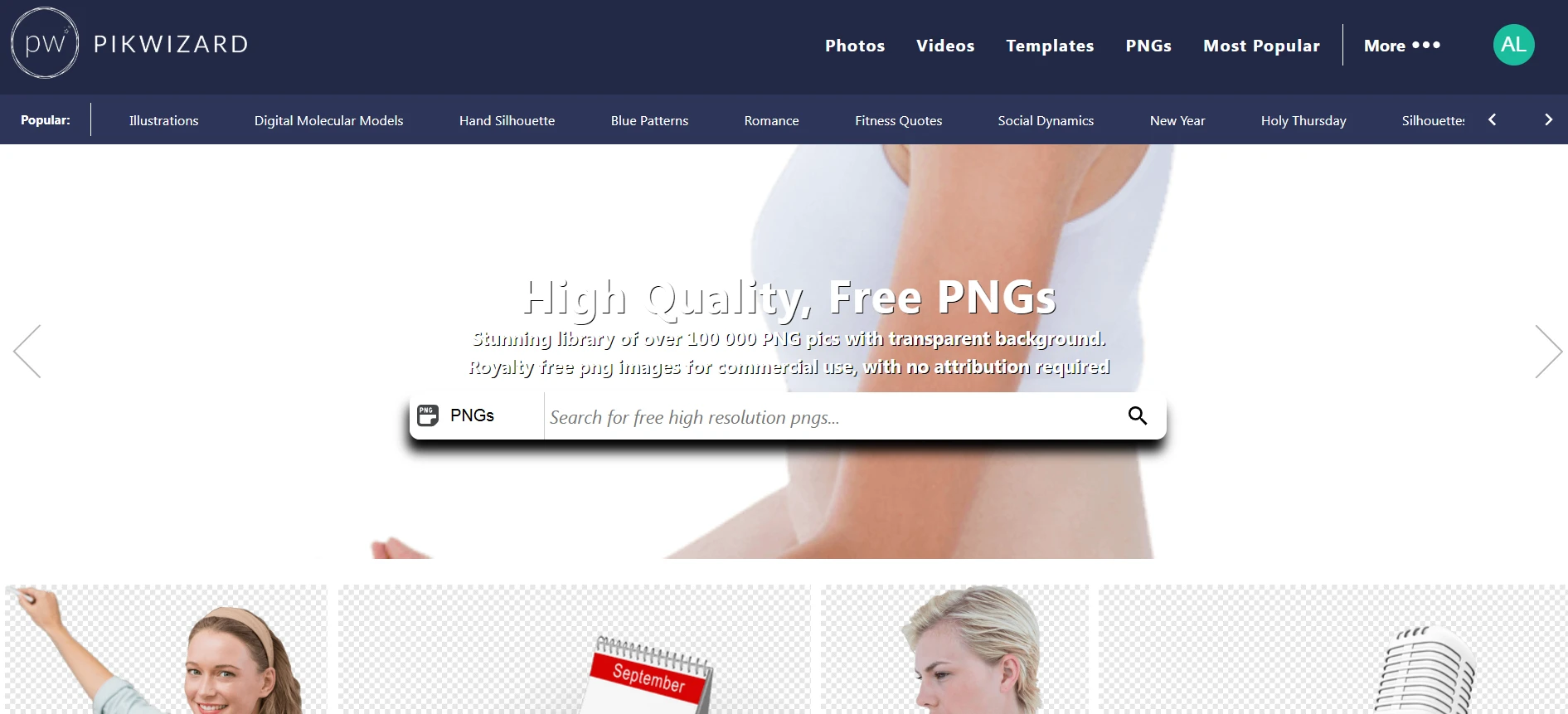
And here’s a little shortcut: if you don’t want to manually cut backgrounds, I would recommend to visit Free PNG Images Collection by Pikwizard that has a bunch of transparent PNGs ready to drop into your design. I’ve just grabbed their assets for quick mockups, and it saved me a ton of time.
WebP: The Speed Champ
WebP is like the new kid who suddenly shows up and outperforms everyone. Google created it to deliver high quality at smaller file sizes, and in my testing, it really does. On one eCommerce landing page, converting JPEG product images to WebP shaved nearly a second off load time—that’s huge for user experience and SEO.
The only catch? Older browsers and some email clients don’t fully support it yet. So, you might need JPEG or PNG backups if you’re targeting a wide audience.
Real-World Test Results
Here’s a quick snapshot from my own testing:
- JPEG: Average load time—2.4 seconds. Decent quality and solid compression.
- WebP: Load time dropped to 1.7 seconds with almost no visible quality loss.
- PNG: Load time was around 3 seconds, but it was the only format that made the logos and icons look flawless.
The takeaway? WebP is your best bet for speed, JPEG is still a workhorse for general images, and PNG shines when you need detail or transparency.
When PNG Is Still the Winner
Even with WebP taking over, PNG isn’t going anywhere. For crisp overlays, product shots with transparent backgrounds, or anything that needs to look pixel-perfect, PNG is still king. Plus, every platform and tool supports it—you don’t have to worry about conversion or compatibility.
If you’re looking for free, high-quality PNGs, Pikwizard is an easy place to start. Their transparent PNG collection is great for quick projects, especially when you’re on a deadline.
The best format depends on what you’re building. Use WebP when performance is critical, JPEG for everyday photos, and PNG when sharpness and transparency matter most. Mixing formats strategically—like PNG for your logo and WebP for background photos—can make your site faster without sacrificing quality.
Choosing the right format might seem small, but it can save seconds of load time and make your content look a lot more professional. And with free tools like Pikwizard in your back pocket, finding the right assets has never been easier.