
Public Wi-Fi has become part of everyday life. Travelers use it to confirm reservations, students connect between classes, remote workers answer email from cafés, and small business owners check customer messages while away from the office.
Across the Finger Lakes, hotels, libraries, campuses, restaurants, and other public spaces make it easier to stay connected. The convenience is valuable, but a shared network deserves more caution than a connection at home or work. Users may not know who manages it, how it is configured, or whether the network name on their screen is genuine.
Avoiding public Wi-Fi altogether is rarely practical. A better approach is to know which activities carry more risk and build a few habits that are easy to follow.
Confirm the Network Before Connecting
A Wi-Fi name can look official even when it does not belong to the business or public building nearby. In a busy hotel, café, airport, or campus, several networks may appear with similar names. Connecting to the wrong one can expose users to unnecessary risk.
If the correct network is not clearly posted, ask an employee before joining. Do not assume that a name such as “Hotel Guest Wi-Fi” or “Free Café Internet” is legitimate simply because it sounds appropriate.
Open networks with generic names deserve particular caution. A network that requires no password is not automatically malicious, but users have less information about who operates it. If a business provides both public and private networks, confirm which one is intended for customers.
Phones and laptops may also reconnect to saved networks automatically. Review saved Wi-Fi networks occasionally and remove connections that are no longer needed. Turning off auto-join for unfamiliar public networks prevents a device from connecting without the user noticing.
Choose Protection Based on What You Are Doing
Checking the weather or reading local news presents a different level of risk from opening a payment dashboard, medical portal, tax account, or confidential business file. Before entering sensitive information, consider both the network and the importance of the account.
Look for HTTPS and check the website address carefully. HTTPS encrypts information exchanged with the website, but it does not confirm that the site itself is trustworthy. A convincing phishing page can also use HTTPS, so spelling, domain names, and unexpected login requests still matter.
For people who regularly connect from hotels, libraries, cafés, campuses, or shared workspaces, afree VPN app can add an encrypted connection between the device and the VPN server. X-VPN is one consumer privacy provider that offers this type of service across major desktop and mobile platforms.
A full VPN app is generally the more suitable choice when protection is needed beyond a single browser. It can cover traffic from other supported apps on the device, such as email clients or communication tools, depending on the operating system and configuration.
People who conduct most of their online activity inside Chrome may prefer a lighter, browser-focused option. AVPN Chrome extension can protect Chrome traffic while using unfamiliar Wi-Fi, but it should not be confused with full-device coverage. Activity from other apps may remain outside the extension’s connection.
X-VPN offers both app-based and browser-based options, making the distinction important. The right format depends on whether the user needs protection for one browser or for broader device activity.
Neither option prevents every online threat. A VPN cannot identify every phishing message, repair an infected device, or make a weak password stronger. It works best as one part of a wider set of security habits.
Treat Sensitive Accounts Differently
Some accounts deserve more protection because they can provide access to money, private records, or other services. Primary email accounts are especially important. Anyone who gains access to an email inbox may be able to reset passwords for banking, shopping, social media, and cloud accounts.
Use a different password for each important service. When one password is reused, a breach at a minor website can put several more valuable accounts at risk. A password manager can generate and store unique passwords without requiring users to memorize every one.
Multi-factor authentication adds another barrier. An authenticator app or security key is generally stronger than relying only on a password. SMS verification is not the strongest method, but it can still provide more protection than a password alone.
If an important login can wait, consider postponing it until a trusted network or cellular connection is available. This is particularly sensible for banking, medical records, tax services, payment systems, and website administration.
Unexpected login links should also be avoided. Instead of following a link in an email or text message, open the service through its official app or type the known address directly into the browser.
Be More Cautious With Shared Computers
A public computer creates different risks from public Wi-Fi. The user does not control the device, its software, browser extensions, or security settings. Private browsing mode may reduce the information saved in the browser, but it cannot guarantee that the machine is free from monitoring software or malware.
Whenever possible, avoid accessing banking, medical, tax, payment, or business administration accounts from a shared computer. Use a personal phone, tablet, or laptop instead.
If a shared device is the only option, do not save passwords or payment information. Log out completely, close every browser window, and avoid downloading private documents. Remember that closing a tab does not always end an active login session.
Libraries, hotel business centers, schools, and shared offices provide useful access to technology. They are appropriate for research, directions, printing, and other general tasks, but they should not be treated like personal devices.
Update Devices Before They Leave Home
Software updates often include fixes for known security problems. Installing them before a trip, school term, conference, or period of remote work is easier than dealing with a large update while relying on hotel or campus Wi-Fi.
Update the operating system, browser, email app, cloud tools, and any software used for work or school. Browsers deserve particular attention because so many important activities now happen inside them.
Browser extensions should be reviewed as well. Extensions can request access to browsing data, page content, downloads, or login activity. Remove tools that are no longer used, and check the permissions requested before installing new ones.
Device security also matters if a phone or laptop is lost. Use a screen lock, enable device-location features where appropriate, and keep important files backed up. Business users should know how to report a lost device and change affected passwords quickly.
Small Businesses Need Clear Public Wi-Fi Rules
Public Wi-Fi safety is not only an individual concern. Owners, employees, freelancers, and contractors may access company information while working from cafés, hotels, airports, or coworking spaces.
A small business does not need a lengthy technical policy. A short set of written rules can explain which accounts should never be accessed over an unfamiliar network, when employees should use a VPN, and how to report a suspicious login or lost device.
Email, cloud storage, payment systems, website administration, customer records, and social media accounts should use unique passwords and multi-factor authentication. Access should also be removed when an employee or contractor no longer needs it.
Businesses that provide customer Wi-Fi should keep guest access separate from internal operations. The guest network should not provide access to payment terminals, office computers, security systems, printers containing sensitive documents, or private business files.
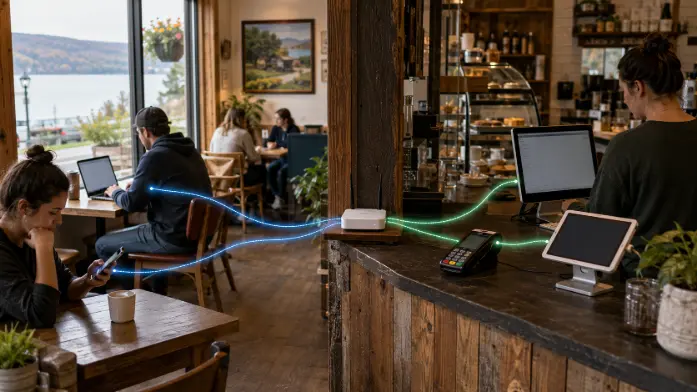
Employees also need a clear contact person. If someone sees an unfamiliar login alert or clicks a suspicious link, they should know whom to tell. Quick reporting is more useful than hiding a mistake out of embarrassment.
A Practical Public Wi-Fi Checklist
Before connecting:
● Confirm the official network name with the business or organization.
● Avoid generic open networks that cannot be verified.
● Turn off automatic connection to unfamiliar networks.
● Install pending device, browser, and app updates.
While connected:
● Check the website address before entering login details.
● Limit sensitive activity when a trusted or cellular connection is available.
● Use the appropriate privacy tool for full-device or browser-only activity.
● Do not save passwords on public or shared computers.
● Treat unexpected links, payment requests, and login alerts with caution.
After using the network:
● Log out of important accounts.
● Remove the network from saved connections if it is no longer needed.
● Review account alerts if anything unusual occurred.
● Change passwords promptly if login details may have been exposed.
Public Wi-Fi Can Remain Useful
Shared internet access supports tourism, education, remote work, and local commerce. The goal is not to make every public connection feel dangerous. Users simply need to recognize that a network they do not control should not be treated exactly like the one at home.
Confirming the network name, separating casual browsing from sensitive activity, updating devices, and protecting important accounts all reduce avoidable risk. Travelers, students, remote workers, and small businesses can continue using public Wi-Fi without giving up convenience—as long as a quick connection does not replace good judgment.